AI Parental Controls at Home: A Parent's Guide to Safer AI for Kids
Set up AI at home so it helps your kids learn instead of doing their homework, responds with care when they're struggling, keeps their personal details private, and never runs up a surprise bill.
On this page
- How it fits together
- Getting it running
- Choose what each child can use
- The safety model
- Child Safety: rules that follow each child
- The six categories
- What happens for each category
- The tutor rule
- What’s always blocked
- Follow-ups are read in context
- What they can make
- A second safety net for personal details
- Spending limits: no surprise bills
- What it costs
- What you’ll see, and what you won’t
- Honest limits
- Upgrading from the Family router
- A first weekend plan
- Getting started
If you have kids at home, AI probably arrived before you had a chance to think about it. It helps with fractions at the kitchen table, answers the “why is the sky blue” questions at bedtime, and now and then gets asked something you’d much rather they had asked you.
Most of us are fine with the first two. It’s the third that keeps us up. The apps have their own settings, but every app is different, the settings move around, and none of them talk to each other. So you can’t really answer the questions that matter to a parent: What are my kids actually using this for? Is it doing their homework for them? Would I know if one of them was having a hard time?
This guide walks through a setup we think works well for families. Every AI request in the house goes through one small server that you control, a bit like the Wi-Fi router already does for the web. With it:
- everyone in the family gets their own account, and the kids only see the models you pick for them,
- each child gets rules that fit their age, and those rules follow them to every model they can use,
- homework questions get a tutor that helps them think, not a finished answer to copy,
- when a child says something worrying, the reply is warm and points them toward a trusted adult, and you’re told that it happened,
- passwords, phone numbers and card numbers that get pasted in are caught,
- nobody runs up a surprise bill,
- and it costs little or nothing beyond a computer you may already have.
One thing up front: none of this replaces talking with your kids. What it can do is make the safe path the easy one, and give you enough of a picture to know when a conversation is needed, without reading every message they write. We’d suggest telling them how it works, too. Kids handle rules better when they know what the rules are and why.
How it fits together
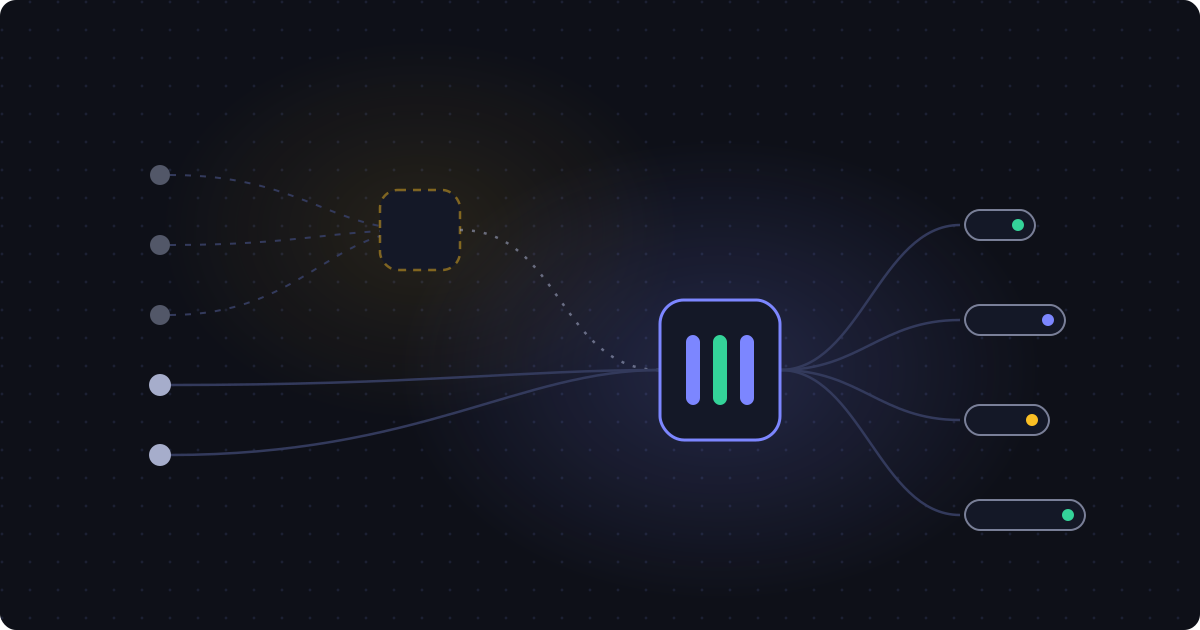
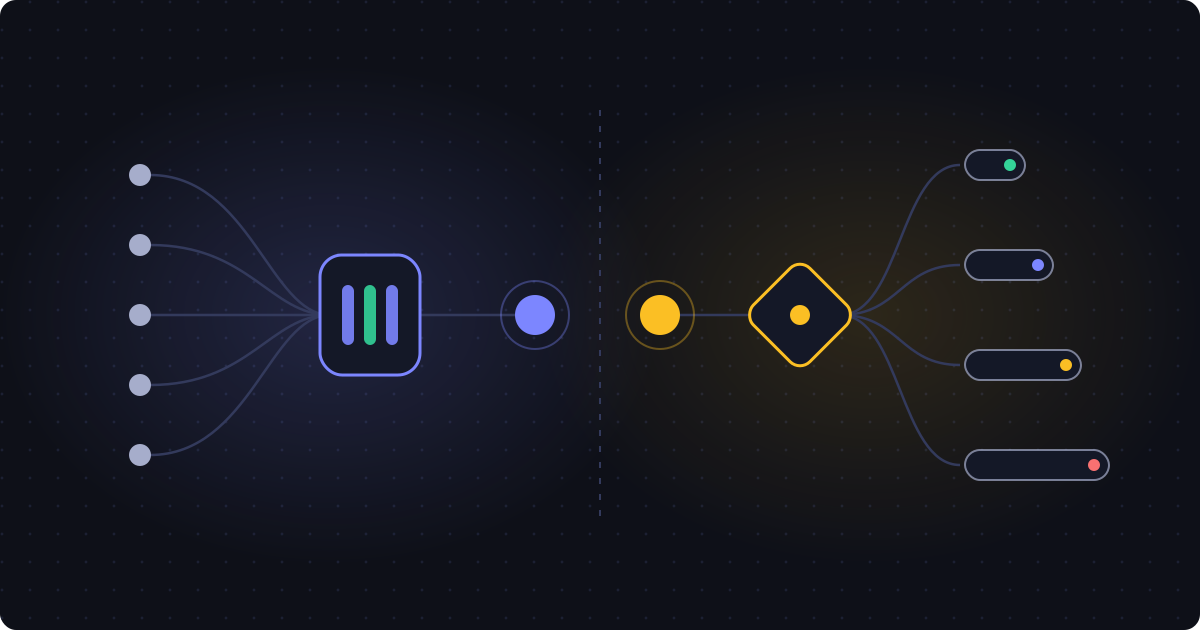
Janus Edge runs on one machine in the house: a spare PC, a small home server, or a NAS that can run Docker. Your family’s chat app talks to it instead of talking straight to an AI company, and everyone signs in as themselves. Janus decides which models each person can use, checks each request, keeps track of what it costs, and passes it along to a model. That model can run on your own computer, come from a provider you pay as you go, or be a subscription someone in the family already has.
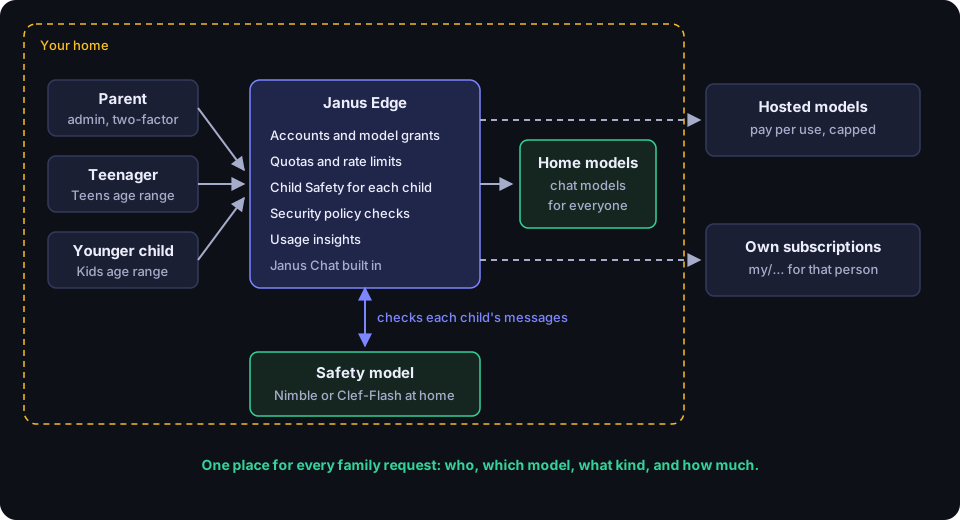
Here are the parts you’ll use, in plain terms:
- Accounts for each person, with two-step sign-in on yours.
- Model grants: having an account doesn’t give access to anything by itself, so the kids only see the models you hand them.
- Janus Chat, a chat page built into Janus, so the family doesn’t need a separate chat app.
- Child Safety, which gives each child an age range and decides, message by message, whether the model answers normally, answers with extra care, or doesn’t answer at all.
- Spending limits and rate limits for each person.
- Usage insights, which shows what each person uses AI for, in categories you choose.
- A security policy with checks for passwords and keys and personal details.
- A decision model, a small and fast model that sorts each message into a category. Child Safety uses one as its safety model.
Getting it running
Janus comes as a single program, a container image or a Helm chart. At home, the container or the Linux installer is the easiest, and it keeps its data in a simple SQLite file. The first time it starts, you create the administrator account in your browser. Turn on two-step sign-in for it right away. This is the account that sets the rules, so it should be yours and nobody else’s.
Next, make an account for each person in the family. Then decide which chat app everyone will use.
The simplest choice is Janus Chat, the chat page inside Janus itself. Everyone signs in to the same address with their own account and gets a chat window with the models they’re allowed to use. Every message goes through the same checks, limits and metering as any other request, and the conversations are stored encrypted, so even you as the administrator can’t read your kids’ chats. Janus Chat is a preview in this release: it appears once Janus is started with JANUS_CHAT_PREVIEW=true. Administration → Chat is where you choose the default model, the models it lists and which tools it may use.
You can still use another app. Each person can create their own key in the portal, and that key is tied to their name, so every request is counted against the right person. Any chat app that lets you enter your own server address and key will work. Open WebUI running on the same home server makes a nice shared family chat page, and plenty of phone and desktop apps accept a custom address too. Child Safety covers those requests just the same, because it goes by who is asking, not by which app they use.
A practical note: Janus can only help with what goes through it. If your kids can still open an AI company’s own app or website, those conversations skip the gateway entirely. Use the controls you already have on your home router or their devices to block the AI sites you don’t want used, and make the app that goes through Janus the one that’s installed and working.
Choose what each child can use
Deciding who gets which model is the simplest control and the strongest. A grant gives a model to one person or to everyone, and a child’s app will only list the models they’ve been granted.
Many families end up with something like this:
- Parents: the paid models you use for work, plus everything else.
- Teenagers: a capable model at home, and maybe one paid model with a tight spending limit.
- Younger kids: one or two models you’re comfortable with, often the ones running at home.
You don’t need a special model name for the kids any more. Child Safety’s rules apply to every model a child can use, including models you add later and a teenager’s own subscription, so giving a child a new model never opens a gap. If you want to keep an age range off a particular model altogether, each range has an optional list of blocked models. A blocked model disappears from the child’s list and is refused if they ask for it by name.
The safety model
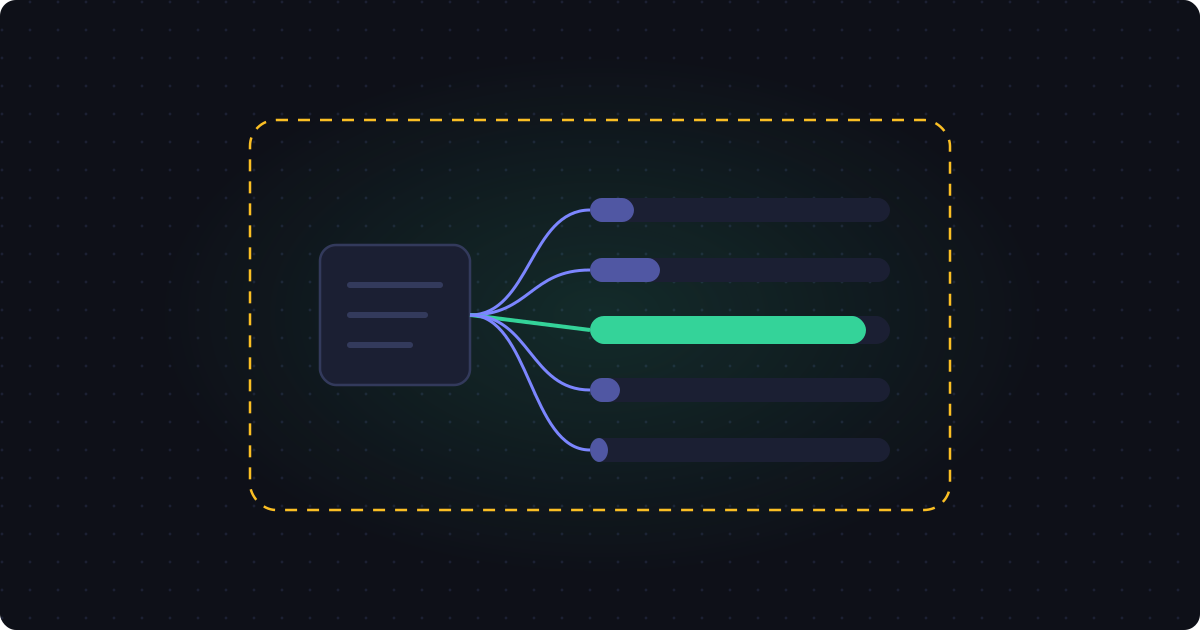
For anything that depends on what a message is about (is this homework help or a shortcut, is this child OK), Janus needs a classifier: a small model that reads each message and answers a few short questions about it. Decision models are made for exactly this. They pick from the options you give them, say how sure they are, and do it in a fraction of a second. They don’t write replies. Our guide to running a local decision model goes deeper. For a family, it comes down to two choices:
- At home. Bespoke Nimble runs on a Mac or a gaming PC with one command (
ollama pull nimble). Cloudflare’s Clef-Flash runs on a gaming graphics card with llama.cpp, and in our testing it was a little faster and about as accurate. Its bigger sibling Clef is the most accurate choice for checking fully at home, but it needs a stronger graphics card and answers more slowly. All three are free to run, and your kids’ messages never leave the house to be checked. With Nimble or Clef-Flash, turn on Ask one question per category in Child Safety’s model settings. - Hosted. TypeSafe Jev, through OpenRouter or TypeSafe, answers in a few hundred milliseconds and was the fastest and most accurate safety model in our tests, which is why Janus recommends it. It costs very little per request, but every message it checks, and every reply, goes to that provider.
For many families, privacy settles it. If you have a gaming PC or an Apple Silicon Mac, check at home. If you don’t, a hosted safety model is still far better than nothing, and you can switch later without changing anything else.
Add the classifier’s server to Janus, give the model the “decision” role under Administration → Gateway → Models, and if it runs at home, mark it Free under Usage insights → Performance → Decision models. Then use Try it with a few sample messages before you rely on it.
Janus can also list a Llama Guard model as the safety model, marked legacy. It only checks the always-blocked safety categories described below, not the six categories that make the age ranges work, so use a decision model.
Child Safety: rules that follow each child
Open Administration → Safety & Security → Child Safety, switch it on, choose the safety model and add the children. You can add each child directly, or make a team called “Kids” and add the team. Each child or team gets an age range:
- Little kids (8 and under),
- Kids (9 to 12),
- Teens (13 to 17),
- or your own range, copied from one of these and adjusted.
A child’s own age range wins over their team’s, and a child who belongs to several teams gets the strictest setting of each category. A child also can’t leave the team that keeps Child Safety on for them.
Until a safety model is chosen and at least one child is added, the page shows a red Not protecting state with the reason. Once it’s set up, Child Safety fails closed: if the safety model goes missing or stops answering, the children’s messages are refused rather than passed through unchecked, and nobody else in the house is affected.
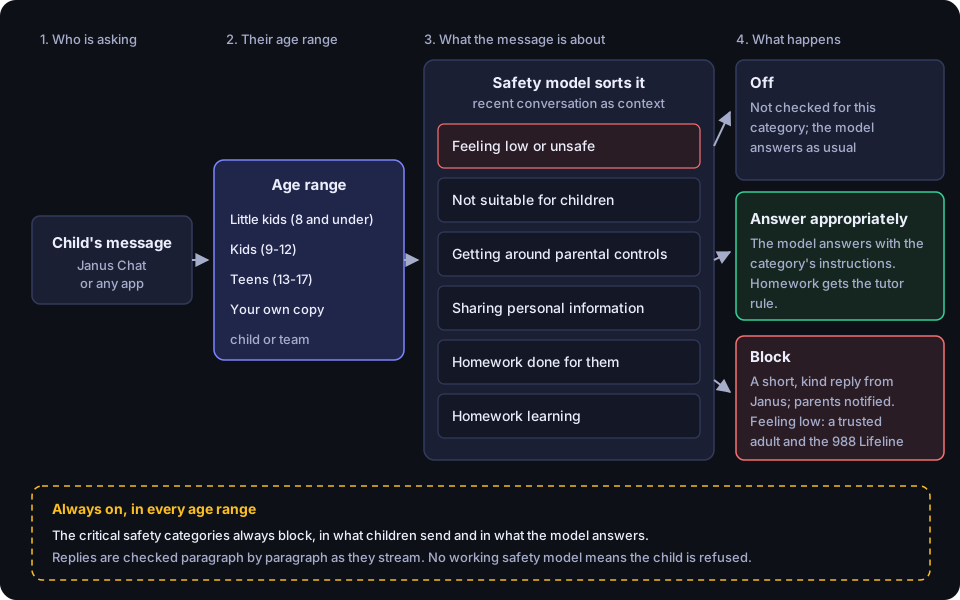
The six categories
Each age range sets six categories. The classifier reads each category’s description exactly as written, and the “does not include” part matters a lot. It’s what tells “can you explain photosynthesis?” apart from “write my photosynthesis essay.”
Feeling low or unsafe
- Includes: sadness, loneliness, being bullied, worry about home or friends, trouble sleeping or eating, thoughts of hurting themselves, or someone making them feel unsafe.
- Does not include: schoolwork about mental health as a topic.
Not suitable for children
- Includes: sexual or romantic roleplay, graphic violence or gore, buying or using drugs, alcohol, vapes or weapons, gambling, dangerous stunts or online challenges.
- Does not include: age-appropriate health or sex education, history or news for school, or questions about staying safe.
Getting around parental controls
- Includes: switching off or getting around screen-time limits, content filters, parental controls or school device management, hiding what they do from parents, or making secret accounts.
- Does not include: general questions about how parental controls work.
Sharing personal information
- Includes: giving out their home address, school, full name together with where they live, phone number, passwords or logins, or photos of themselves, or arranging to meet someone they met online.
- Does not include: general questions about privacy or how to make a good password.
Homework done for them
- Includes: asking for finished homework or an assignment to hand in, a whole essay, report or story written for them, every answer on a worksheet, test or quiz, or rewording (“humanizing”) text to get past plagiarism or AI checkers.
- Does not include: asking for an explanation, a hint or the next step, checking their own answer, feedback on a draft they wrote, practice questions, or an example on a different topic.
Homework learning
- Includes: help with schoolwork, such as a math problem, a science, history or grammar question from class, checking an answer they worked out, or studying for a test or quiz.
- Does not include: asking for a whole assignment to be done for them, or everyday questions that aren’t schoolwork.
What happens for each category
For each category, the age range picks one of three outcomes:
- Off: the message isn’t checked for that category, and the model answers as it normally would.
- Answer appropriately: the message goes to the model with that category’s instructions added, so the answer changes. For “Not suitable for children” the model kindly says it can’t help, without a lecture, and offers something age-appropriate instead. For “Getting around parental controls” it gives no steps or tricks and suggests talking with you about the rule that’s bothering them. For “Sharing personal information” it acts as a privacy coach: it never repeats the detail back, explains why it’s worth keeping private, and says never to meet someone from the internet without a parent. You can edit every one of these instructions in your own words, and reset them to the built-in text.
- Block: the message never reaches the model. The child gets a short, kind refusal that doesn’t name a category, and you’re notified.
“Feeling low or unsafe” works a little differently. Set to Answer appropriately, the model answers as a warm, patient listener and encourages the child to talk to a parent, teacher or school counselor. Set to Block, Janus answers itself, with a kind message that points the child to a trusted adult and to the 988 Suicide & Crisis Lifeline (911 in an emergency, and Childhelp at 1-800-422-4453 if home doesn’t feel safe). Every administrator is told that the child may need support, but never what they wrote. Turning this category Off means a child who says they’re struggling gets an ordinary answer and you aren’t told, and the page warns you about that.
Out of the box, Little kids blocks Feeling low or unsafe, Not suitable for children and Getting around parental controls. Kids blocks Feeling low or unsafe. Teens blocks none of the six and gets a milder “Not suitable for children” text that answers educational questions about mature topics factually. Every other category starts on Answer appropriately. Treat these as a first draft for your family’s own rules.
Every message from a child also gets the age range’s “every message” text, which tells the model who it’s talking to. For Little kids it asks for short sentences and simple, friendly words; for Teens it asks the model to be respectful and direct. Every range tells the model never to repeat personal details a child shares, and the two younger ranges also tell it to call a child only by a first name they introduce themselves with.
The tutor rule
While either homework category is set to Answer appropriately, every message from that child also carries the tutor rule. The model never gives the final answer, the result or a worked solution, even after the child has tried. It explains the idea, gives a hint or the next step, or shows a similar example with different numbers. When the child shares their own answer, it says plainly whether it’s right, and if it’s wrong, which step to look at again.
Janus also checks the replies. If a reply gives the answer away anyway, it stops there and ends with a short note encouraging the child to work it out. That’s the tutor doing its job, not an incident, so it doesn’t notify you.
What’s always blocked
Some things are blocked for every child in every age range, whatever you set, in both what they send and what the model answers: child sexual exploitation, sexual content, sex-related crimes, violent crimes, indiscriminate weapons, suicide and self-harm, hate, and non-violent crimes such as drugs. A message about suicide or self-harm always gets the kind answer with the 988 Lifeline, and you’re notified.
Replies are checked a paragraph at a time as they stream in, for these categories and for the ones the child’s age range blocks. Each paragraph is held until the safety model clears it, and a reply that’s stopped ends with a short notice. Replies aren’t checked for “Feeling low or unsafe” or the homework categories, so a kind reply to a sad child is never cut off.
Follow-ups are read in context
Kids rarely ask the whole question in one go. The safety model reads each message with the recent conversation as context, so “how do I do that without my parents knowing?” right after a question about buying a vape is treated as the same request. It includes the last six earlier messages and marks the newest one as the message to judge, so a real change of subject isn’t dragged back to the earlier one.
What they can make
Children can chat. Each age range also has four What they can make switches: Make pictures, Make videos, Make music and Turn speech into text. All four are off by default. When one is on, children in that range can use it, and what they ask for is checked first, like any message. When it’s off, Janus Chat doesn’t offer it and the request is refused. With Turn speech into text on, sound and video files a child attaches in Chat are turned into text and checked before the model reads them; with it off, those files are refused. Pictures a child attaches themselves are passed to the model and aren’t checked, which is worth knowing if you have a younger child.
Web pages and search results that Janus Chat reads for a child are judged as content shown to the child. A page that gets flagged is kept from the model, and it never counts as something the child asked for, so it doesn’t trigger a support message or a note to you.
A second safety net for personal details
Child Safety shapes what your kids can ask and what they’re told. A separate security policy can catch the specific things kids paste without thinking. Under Security → Policies, create a policy with:
- Password and key detection, with built-in rules for passwords typed into a message (“password: …”), API keys, private keys and connection strings, including in replies as they stream in.
- Personal detail detection for email addresses, phone numbers and card numbers (it uses the card’s checksum, so random digits aren’t mistaken for a card).
- Term lists of words you pick, such as your child’s full name, school or street. The matching still works through odd spacing, capital letters and look-alike characters.
Bind it to Everyone so it covers the whole household, parents included, or to a group with just the kids in it. Every finding is recorded with the kind of check, the person and what happened, under Security → Violations. Recording a finding doesn’t save the message itself.
What each edition does with a finding. Child Safety, including blocking, is free in every edition. Security policies like this one watch and record in Community, the free edition; removing a password or phone number before it goes out, or blocking the request, needs Business. If you’d like to try that, the 30-day Business trial includes it. Business is priced per active seat with a minimum per subscription, so check the pricing page against your family’s size.
Spending limits: no surprise bills
Paid AI models charge for every bit of text they read and write, and a curious kid with an AI tool can spend more in an afternoon than you’d guess. Spending limits stop that before the provider is ever asked.
- Give each person a spending limit, say a few dollars a month for each child, or limit text volume or number of requests instead. Limits can reset daily, weekly or monthly, or cover a rolling 24 hours, 7 days or 30 days.
- Put a limit on one model if you want the expensive model kept tight and the models at home left loose.
- Decide whether a request that’s already running gets to finish or is cut off when the limit is hit. Either way, the message tells them when the limit resets. In Janus Chat, a line above the message box also warns when a limit is close.
- Set up an alert for when someone gets close (80% and 95% by default) or goes over. In-app and webhook alerts come with every edition, and a webhook can post to a family chat or send a phone notification.
- Turn on rate limits for each person, so a runaway script can’t fire off hundreds of requests a minute.
Janus prices every request using the provider’s own rates, so what you see in the dashboard is what you’ll be charged. Pictures, videos and music made in Janus Chat are each their own metered request, which is one more reason they’re off for children until you switch them on.
What it costs
A family can run all of this for very little:
- Janus Edge Community is free for personal use, for up to 25 active users on one gateway, and it includes Child Safety and Janus Chat.
- Models at home cost only electricity. A gaming PC or an Apple Silicon Mac can run a capable small chat model and a safety model.
- A hosted safety model, if you go that way, costs a fraction of a cent per request. TypeSafe Jev is listed at $0.042 per million input tokens.
- Paid chat models charge as you use them, and the spending limits above keep them within the budget you set.
Personal subscriptions cover the plans people already pay for. Someone in the family can connect their own ChatGPT Plus or Pro, GitHub Copilot (including the free tier), xAI SuperGrok or X Premium+, or Mistral plan. They sign in on the provider’s own page, so Janus never sees the password, and then use those models through Janus as my/<provider>/<model>, or under “Your subscriptions” in Janus Chat. Those requests go through the same checks, limits and request log as everything else, at no extra cost, since the plan is already paid for. You turn the feature, and each provider, on or off as the administrator.
One rule worth knowing: a subscription belongs to one person and is never shared. A parent’s ChatGPT Plus plan is for the parent, not the kids. That’s on purpose, since provider terms generally tie a plan to one person, and it also draws a sensible line. A teenager with their own plan can bring it into the safer setup, and Child Safety covers their plan’s models like any other.
What you’ll see, and what you won’t
The Child Safety page lists its events, and so does Security → Violations. You get an in-app notification when a child’s message or a reply to them is blocked (at most one every 15 minutes per child) and every time a child may need support. If you’d rather hear on your phone, an alert rule on the Child Safety trigger can send a webhook (and email, on Business). When a category was answered appropriately, the request’s details in the request log show a line such as “Answered appropriately: Homework learning”.
Under Usage insights, the categories you add there turn into reports: how much of each child’s use was learning versus other things, how that changes over the school term, and which models answered. The request log shows who asked, which model answered and what it cost.
What you won’t find is a transcript. Child Safety keeps the outcome and the category, never what a child wrote, and the request log keeps labels, timing, size and cost, not messages or answers. Janus Chat does keep each person’s conversations so they can go back to them, but they’re encrypted and only the owner can read them; administrators can’t. If your family uses another chat app instead, that app keeps its own history under its own rules. There’s one exception to know about: a troubleshooting capture, which is a Business feature you’d have to start yourself, records requests exactly as sent, children’s messages included.
For most families, we think that’s the right balance. You can see that your son set off the homework rules a dozen times the night before an essay was due, or that you were told twice this week that your daughter may need support, and you can sit down and talk without having read her messages. If you decide you need full transcripts, that’s a different and much more invasive kind of tool, and whichever way you go, it’s worth being honest with your kids about it.
Honest limits
This setup will get some calls wrong in both directions. A safety model is a small model making quick judgments, so now and then an ordinary sad moment, like a pet that died, will be treated as “Feeling low or unsafe”, and now and then a cleverly worded homework shortcut will slip through as a learning question. The tutor rule and the reply checks catch a lot of the second kind, but not all of it. Try your own kids’ typical questions before you rely on it, and adjust the instructions if your family sees things differently.
Instructions steer the model, they don’t guarantee its behavior, and a determined kid can sometimes talk a model around. That’s why the categories that matter most to you can be set to Block, and why the critical safety categories are always blocked and checked in the reply as well. Pictures a child attaches aren’t checked. And anything that doesn’t go through Janus, such as an AI company’s own app on a friend’s phone, isn’t covered at all.
Upgrading from the Family router
If you followed an earlier version of this guide, here’s what changed in Janus Edge 2026.10.5. The Family router template and the Parental controls policy template are gone, and so are the Family categories in Security → Categories. Child Safety replaces them.
Your existing auto/family router keeps working as an ordinary router, and a policy that already selects one of the Family categories keeps it. Once Child Safety covers the kids, the router isn’t needed for their safety any more, because the rules apply to every model they can use. You can grant the kids ordinary models and retire the router when you’re ready.
A first weekend plan
- Install Janus Edge 2026.10.5 or later on a computer at home, set up your admin account with two-step sign-in, and make an account for each person in the family.
- Start Janus with
JANUS_CHAT_PREVIEW=trueif you’d like the family to use Janus Chat, or set up the chat app you prefer. - Get a safety model running (Nimble on Ollama is the quickest at home, hosted Jev the quickest overall), add it, and test it with Try it.
- Open Child Safety, switch it on, choose the safety model, and add each child or a team of children with an age range. Read through the six categories for each range and change anything that doesn’t fit your family.
- Grant each child the models they may use, add spending limits with alerts, and a security policy for passwords and personal details.
- Sign in as a test child account and try the kinds of things your kids ask, then watch a week of events and Usage insights before relaxing anything.
Somewhere in there, sit down with the kids and show them what you’ve set up. They’ll probably have opinions, and some of those may be worth listening to.
Getting started
Everything in this guide works in Janus Edge Community, which is free for personal use, except removing or blocking details with a security policy and troubleshooting captures, which need Business. Child Safety, blocking included, is in every edition. You can download it, and the features page lists everything it does and which edition each feature needs. Start small, check what the safety model gets right and wrong with your own family’s messages, and adjust the age ranges and instructions as you go. Your own judgment as a parent is what makes the rest of it work.